 Blazing Story
Configure Layouts
Blazing Story supports Blazor's standard layout mechanism to control how stories are rendered inside the preview frame. This is especially useful when you want to wrap stories with a theme provider, apply consistent padding, or control positioning.
A layout component must inherit LayoutComponentBase and render @Body in its markup. See also: ASP.NET Core Blazor layouts | Microsoft Learn.
Built-in Preset Layouts
Starting from v1.0.0-preview.81, Blazing Story ships with three ready-to-use layout components in the BlazingStory.Components.Layouts namespace. You can use them immediately without creating any custom layout files.
CenteredLayout
Centers the story content both horizontally and vertically within the preview frame.
<BlazingStoryApp ... DefaultLayout="typeof(CenteredLayout)">
</BlazingStoryApp>
Use this when you want to see a component in isolation, centered in the available space — ideal for buttons, badges, icons, and other compact UI elements.
FullFrameLayout
Expands the story content to fill the entire preview frame while retaining margins.
<BlazingStoryApp ... DefaultLayout="typeof(FullFrameLayout)">
</BlazingStoryApp>
Use this for components that should grow to fill available space, such as panels, cards, or layout-sensitive containers.
NoMarginLayout
Removes all margins so the story content extends edge-to-edge within the preview frame.
<BlazingStoryApp ... DefaultLayout="typeof(NoMarginLayout)">
</BlazingStoryApp>
Use this for full-bleed components like page shells, hero sections, or any component that must control its own spacing.
Custom Layouts
If the built-in presets don't meet your needs, you can create your own layout component. The component must inherit LayoutComponentBase and render @Body:
@inherits LayoutComponentBase
<YourThemeProvider>
    <div style="padding: 24px;">
        @Body
    </div>
</YourThemeProvider>
A story rendered with the layout above will be wrapped in <YourThemeProvider> (useful for cascading values) and will have 24 px of padding on all sides.
Tips for Implementing Custom Layouts
Detecting the Frame Context
The <body> element of the preview frame has a data-bs-parent-frame attribute that indicates the context in which the frame is displayed:
| Value | Context |
|---|---|
"docs" |
The frame is embedded inside a Docs page |
"story" |
The frame is displayed as a standalone Story page |
Use this to apply different styling depending on the context.
Controlling Body Margin
By default, the preview frame's <body> element has a margin of 16px. To override it, set the --bs-preview-body-margin CSS custom property. Because this property is undefined by default, all built-in layout components reference it with a fallback:
var(--bs-preview-body-margin, 16px)
To remove the margin entirely in your custom layout, for example, you can set:
--bs-preview-body-margin: 0px;
Reading the Zoom Level
The current zoom level of the preview frame is available via the --bs-zoom CSS custom property set on the <body> element. Always reference it with a fallback of 1:
var(--bs-zoom, 1)
This is useful when you need to compensate for or adapt to the zoom factor in your layout styles.
Reference Implementation
For complete implementation examples, see the built-in layout components in the Blazing Story repository:
BlazingStory/Components/Layouts
Specifying Layouts
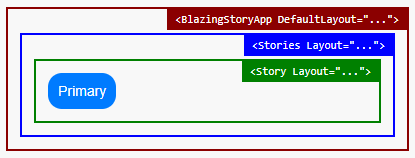
You can specify a layout at three levels. These layouts do not override each other — instead, they are nested: the application-level layout wraps the outermost layer, the stories-level layout wraps inside it, and the story-level layout wraps the innermost layer around the story content.
Application Level
Set the outermost layout for all stories via the DefaultLayout property of <BlazingStoryApp> in your App.razor:
<BlazingStoryApp ... DefaultLayout="typeof(DefaultLayout)">
</BlazingStoryApp>
Component (Stories) Level
Add a middle layout layer for a specific stories file via the Layout parameter of <Stories>:
@attribute [Stories(...)]

<Stories ... Layout="typeof(StoriesLayout)">
    ...
Story Level
Add the innermost layout layer for a single story via the Layout parameter of <Story>:
@attribute [Stories(...)]

<Stories ...>
    <Story Name="..." Layout="typeof(StoryLayout)">
        ...